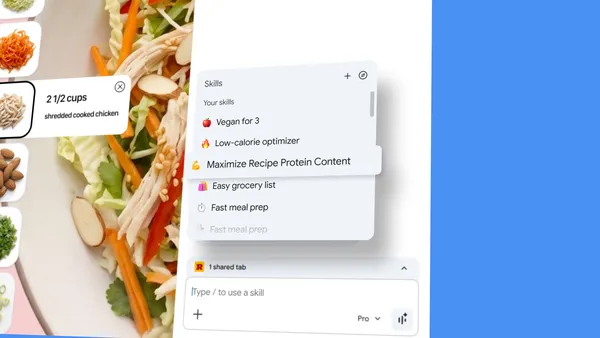

Google just made its AI in Chrome a lot more useful. They’re launching something called Skills, which basically lets you take any AI prompt you’ve written and save it as a reusable one-click tool. No more typing the same vegan recipe substitution prompt on every single recipe page.
I’ve been testing this for a few days, and honestly, it’s one of those features that feels obvious once you see it. You know how you end up asking Gemini the same kinds of questions over and over? Like comparing product specs across tabs, or scanning long docs for key info. Skills just bakes that into a button.
How it actually works
You save a prompt directly from your chat history. Next time you’re on a page where you’d use that prompt, you hit forward slash (/) or click the plus sign in the Gemini sidebar, pick your saved Skill, and it runs on whatever page you’re viewing. You can even select multiple tabs for cross-page comparisons.
I tried the shopping comparison one. Opened three laptop product pages, selected them all, ran the Skill, and it spat out a side-by-side spec table. Took maybe 10 seconds. Does it always work perfectly? No. The AI sometimes hallucinates a spec value or misses a row. But it’s faster than doing it manually, and the edit button lets you fix the prompt if the output is consistently wrong.
The Skills library is a mixed bag
Google also ships a library of pre-made Skills. There’s one for breaking down product ingredients, one for gift selection based on budget and interests, a few for health and productivity. Some are genuinely useful. The gift selector one is clever: it cross-references the recipient’s interests with your budget across multiple tabs. I can see that being popular around holidays.
But a lot of them feel like templates Google’s team threw together in an afternoon. The protein macro calculator, for example, works fine for basic recipes but chokes on anything with unusual ingredients. You’ll want to edit most of these to fit your actual use case. The editing interface is straightforward, at least.
Privacy and control
Skills inherit Chrome’s existing protections for Gemini prompts. That means certain actions like adding calendar events or sending emails require explicit confirmation before the AI can execute them. Google also mentions automated red-teaming and auto-update capabilities, which is their way of saying they’re stress-testing these workflows for abuse scenarios.
I don’t love that saved Skills sync across signed-in Chrome desktop devices. It’s convenient, sure, but it also means your prompts live in Google’s cloud. If you’re privacy-conscious, you might want to think twice before saving sensitive workflows there. The feature is desktop-only for now, which is a bummer for mobile users.
The bigger picture
This is Google’s play to make AI browsing feel less like a party trick and more like a utility. Skills aren’t groundbreaking on their own, but they solve a real friction point: repeating the same AI task across different pages. Combined with Gemini’s ability to work across tabs, it actually changes how I browse. I find myself thinking “I should save this as a Skill” more often than I expected.
Is it perfect? No. The library is hit-or-miss, the cloud sync gives me pause, and the accuracy depends heavily on how well you craft your prompts. But it’s a solid step toward making AI assistants feel less like chatbots and more like actual tools. If you’re already using Gemini in Chrome, give it a try. Just be ready to edit those pre-made Skills.
Comments (0)
Login Log in to comment.
Be the first to comment!